

Citations Procedure Guide
This procedure guide explains how citations function within Asset Memory, helping you trace the origin of information back to source documents. The way citations are presented and interacted with varies depending on the type of file being referenced, ensuring you always have the most appropriate context.
Table of Contents
Section titled “Table of Contents”- Understanding Citations
- PDF and Word Documents
- Excel Spreadsheets
- DWG (CAD Drawings)
- IFC (BIM Models)
- Key Features Summary
- Best Practices
- Troubleshooting
Understanding Citations
Section titled “Understanding Citations”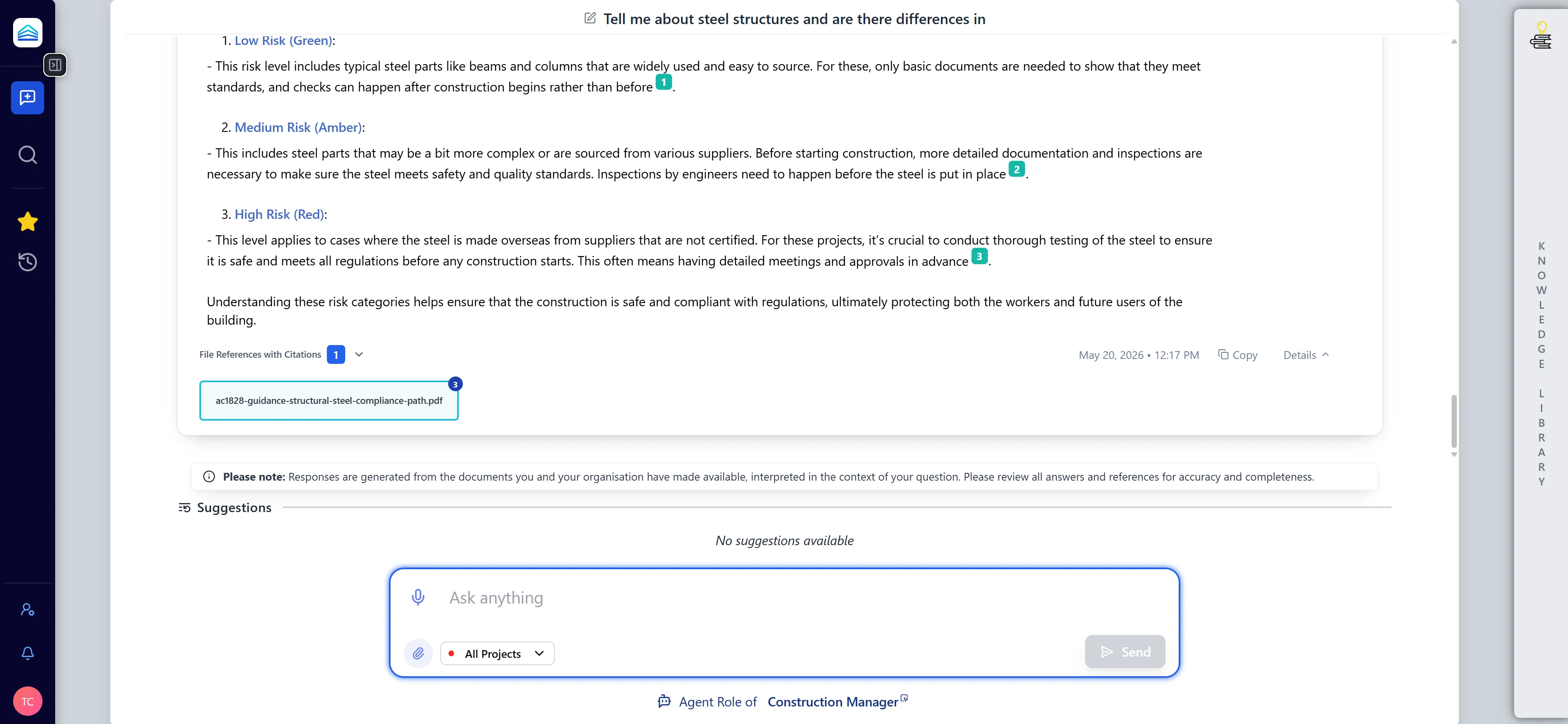
Step 1: Identifying a Citation
Section titled “Step 1: Identifying a Citation”- When the AI references a specific document in its response, a citation link or badge will appear.
- Citations are typically inline with the text to indicate exactly where the information was sourced.
- Hovering over a citation may show a brief preview of the source document.
Step 2: Interacting with Citations
Section titled “Step 2: Interacting with Citations”- Click on any citation within an AI response.
- The built-in document viewer will open in the main panel or a modal.
- The viewer automatically adapts to the file type (PDF, Excel, CAD, etc.) to provide the best reading experience.
PDF and Word Documents
Section titled “PDF and Word Documents”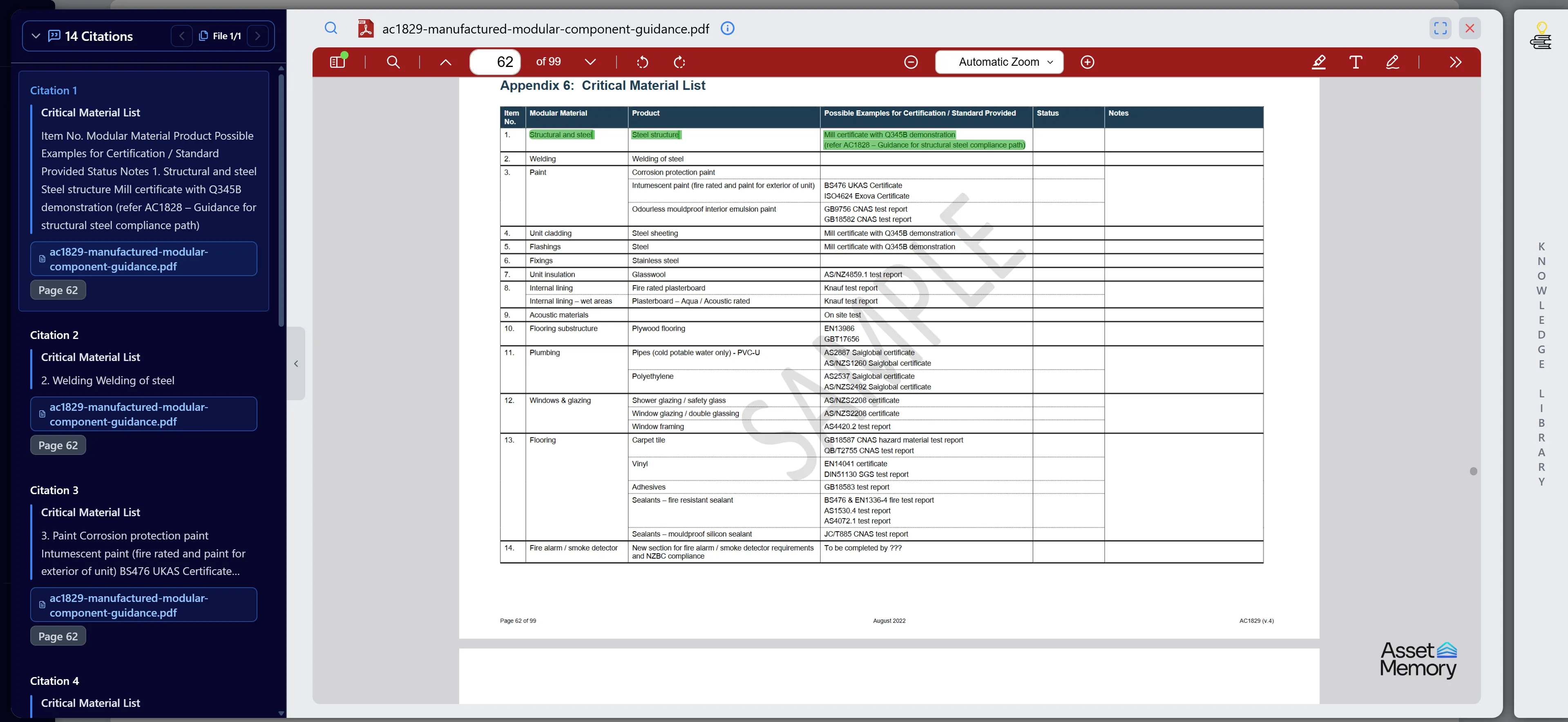
For standard document formats like PDF and Word, citations are designed for quick reading and verification.
Core Features
Section titled “Core Features”- Direct Linking: Citations work by linking directly to the relevant text within the document. You won’t just be taken to the document; you will be taken to the specific section.
- Auto-Scrolling: When you click on a citation, the built-in document viewer will open and automatically scroll to the exact page where the referenced information lives.
- Text Highlighting: To make it even easier to verify the source of the information, the specific paragraph, sentence, or section that the AI used to generate its response will be visually highlighted in the document viewer.
Excel Spreadsheets
Section titled “Excel Spreadsheets”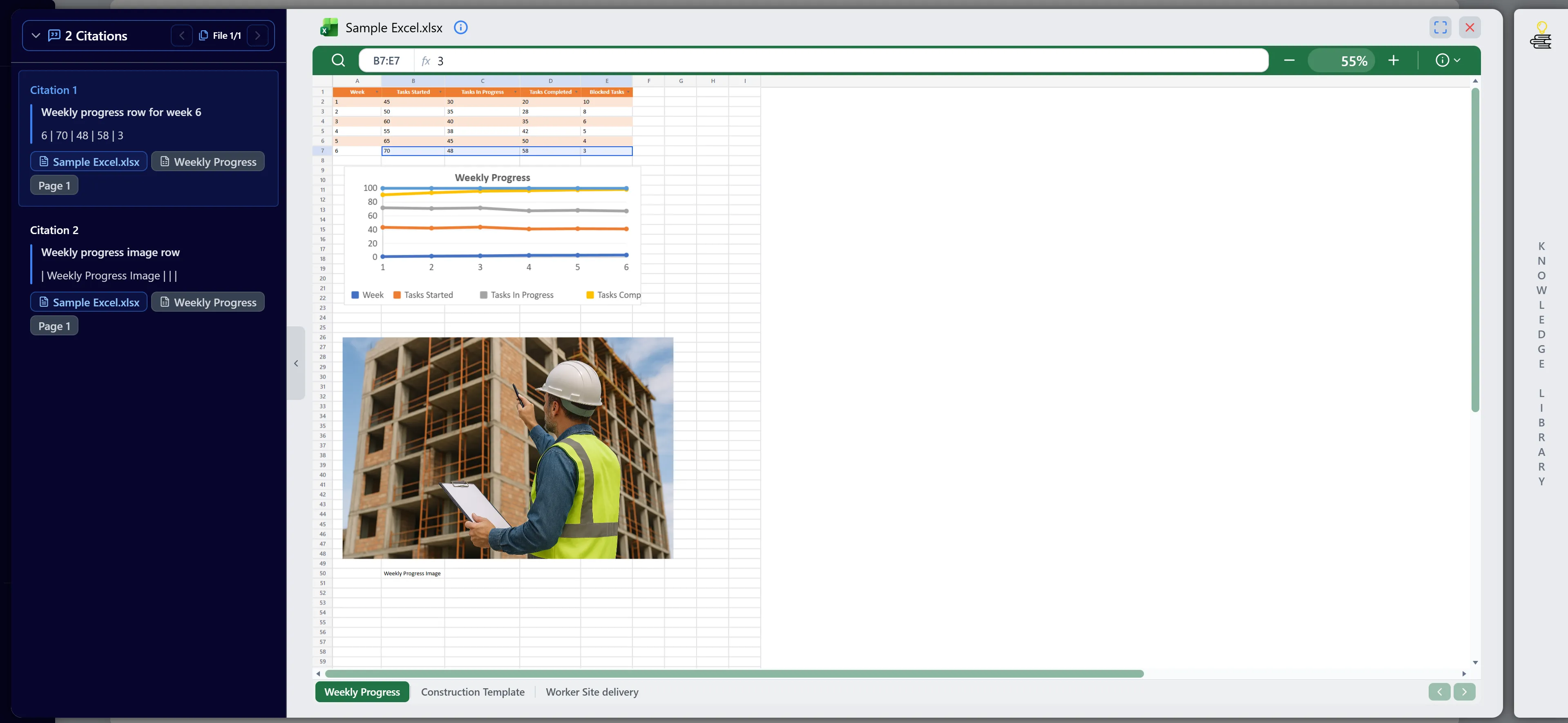
Citations for Excel spreadsheets have slightly varied behavior to accommodate the tabular and multi-sheet nature of spreadsheet data.
Core Features
Section titled “Core Features”- Knowledge Library Filtering: When working with large datasets, the Knowledge Library intelligently filters Excel files. It presents only the most relevant subsets of data when a citation is clicked, so you don’t have to hunt through thousands of unrelated rows.
- Switching Between Citations: Navigation works seamlessly when switching between different citations. The viewer includes an integrated toolbar with a “Find in sheet” function. If multiple cells, rows, or regions are referenced in a single response, clicking through the citations will automatically jump to each respective area and update the formula bar’s “Name Box” to show the exact active cell reference.
- Jumping Between Worksheets: Because Excel files often contain multiple sheets (worksheets), a citation knows exactly which sheet contains the data. The viewer implements a robust sheet tab strip at the bottom. Clicking a citation will automatically switch the active sheet tab to the specific worksheet where the data resides and highlight the exact referenced cells or ranges.
DWG (CAD Drawings)
Section titled “DWG (CAD Drawings)”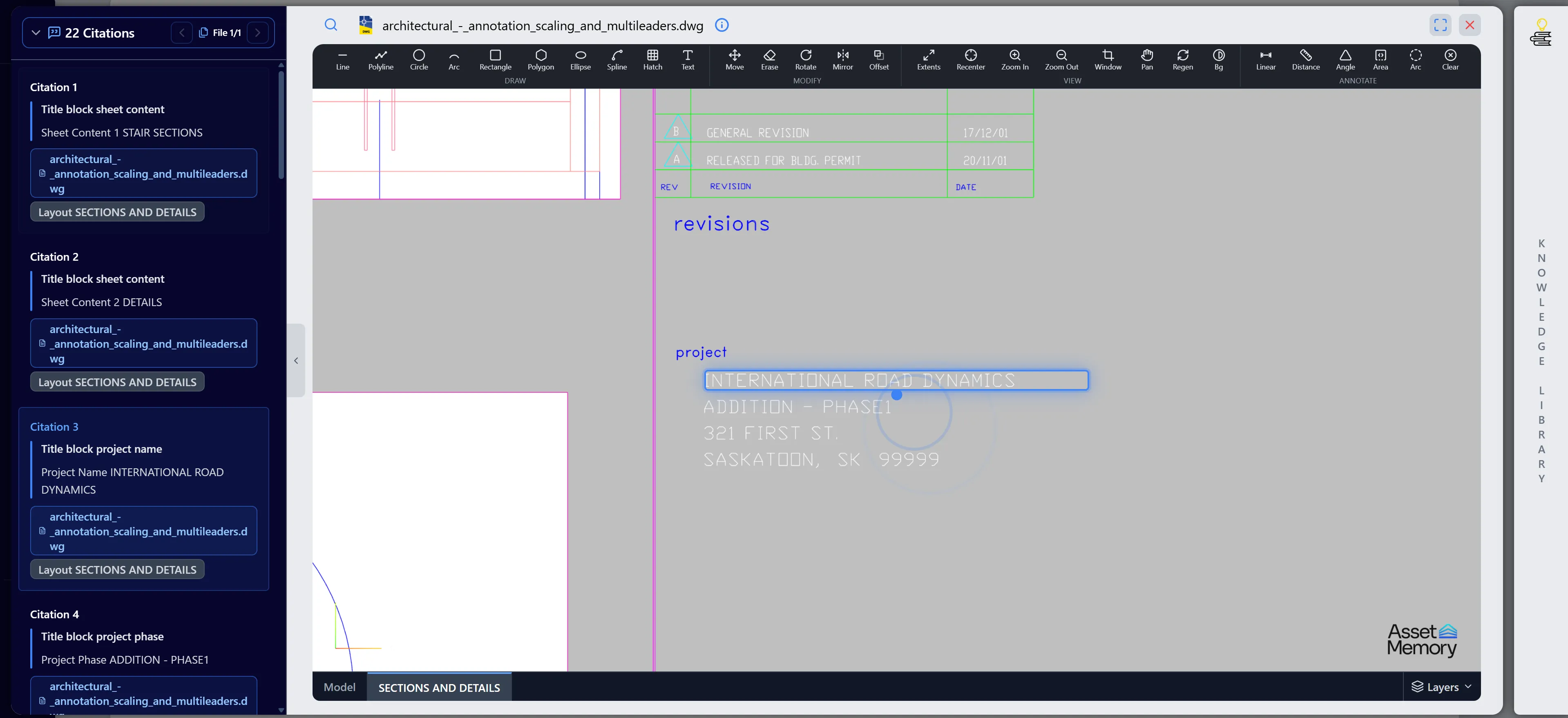
Asset Memory supports advanced, visually-rich citation features for DWG files, essential for engineering and architectural workflows. It seamlessly renders CAD drawings directly in your browser.
Core Features
Section titled “Core Features”- How DWG Citations Work: When a response references design data, measurements, or specific components in a CAD drawing, a citation links directly to those specific elements.
- Highlighting Specific Entities: Clicking on the citation opens the integrated DWG viewer and automatically pans and zooms the camera to fit the referenced entity. Instead of just showing the whole drawing, it places a translucent bounding box overlay and a pulsing target indicator over the specific geometric entities (like lines, blocks, or text) discussed in the chat.
- Component Grouping: If a citation references a broad category (like “Door”, “Window”, or “Plumbing”), the viewer can automatically highlight all related components in the drawing simultaneously, making it easy to see entire families of objects at once.
IFC (BIM Models)
Section titled “IFC (BIM Models)”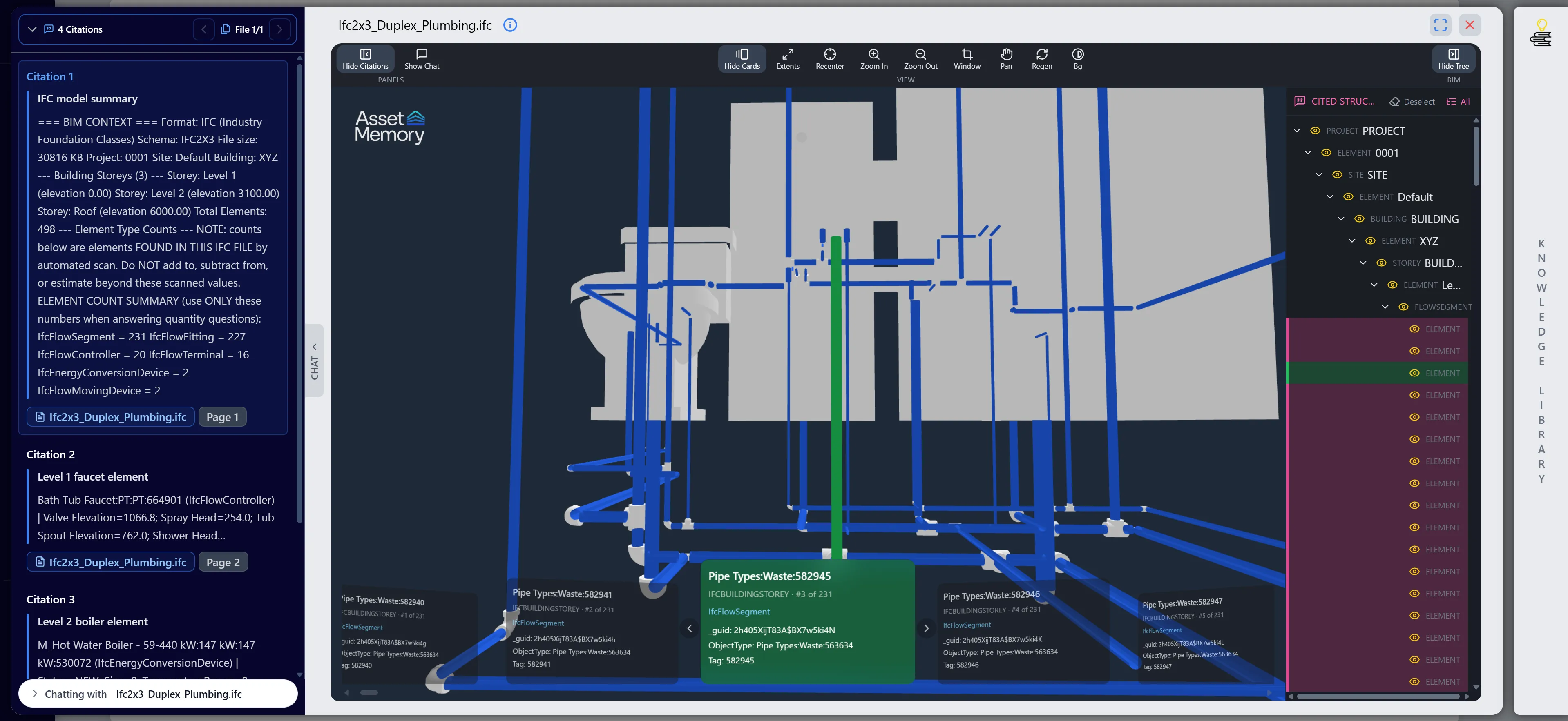
Industry Foundation Classes (IFC) files used in Building Information Modeling (BIM) feature our most comprehensive and interactive citation capabilities, allowing you to interact directly with 3D models and their associated information.
Core Features
Section titled “Core Features”-
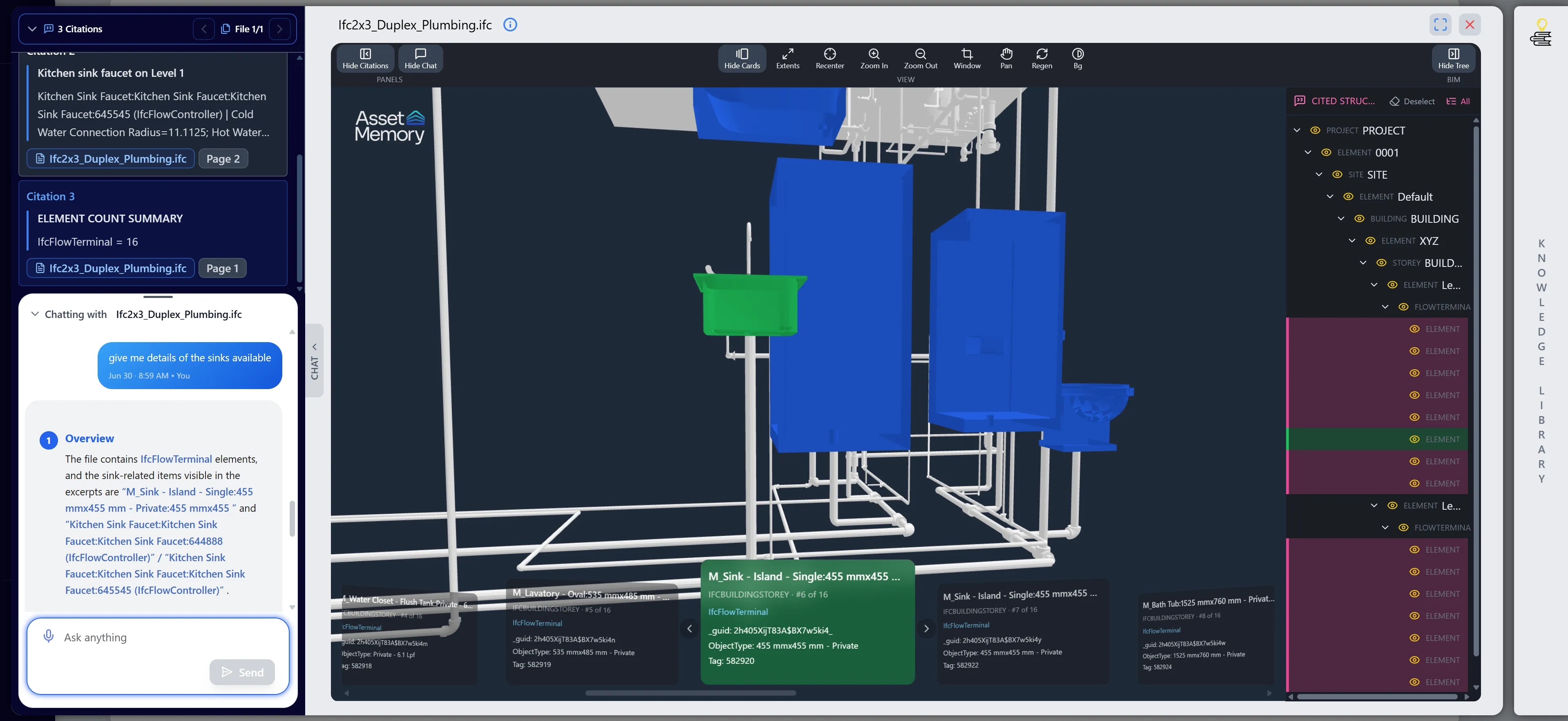
How IFC Citations Work: Citations link directly to specific 3D elements within the BIM model. This bridges the gap between conversational AI and 3D building data, taking you straight to the relevant part of the model.
-
Spatial Structure Tree: The viewer includes a fully interactive BIM Tree Panel that maps the hierarchical spatial structure of the project (Project → Site → Building → Storey → Elements). Citations can automatically expand the tree to reveal exactly where the cited element belongs within the building.
-
Card Systems and Elements: Information is presented using a structured “card system.” Each card in the element strip represents a specific component from the model (e.g., a specific door or HVAC unit). The card displays the element’s type, counts, and key properties.
-
Highlighting Specific Elements: Clicking on an IFC citation will select, frame, and visually highlight the specific component within the interactive 3D model viewer, allowing you to see it in its physical context within the building.
-
Model Chat Feature: Asset Memory introduces an additional, dedicated chat feature that allows you to “talk” directly to a specific model element. By selecting an element from its citation card, a localized chat modal opens. You can then ask questions specifically targeted at that component’s maintenance history or physical properties, keeping the conversation strictly focused on that single element.
Key Features Summary
Section titled “Key Features Summary”Verification Features
Section titled “Verification Features”- Auto-Scrolling: Viewers automatically navigate to the exact cited location.
- Visual Highlighting: Text, cells, or 3D elements are distinctly highlighted.
- Context Preservation: See cited data within its surrounding document or model structure.
Navigation Features
Section titled “Navigation Features”- Cross-Sheet Navigation: Seamlessly move between tabs in spreadsheets.
- 3D Camera Framing: Automatic panning and zooming for CAD and BIM files.
- Tree Structures: Expandable spatial hierarchies for complex architectural files.
Best Practices
Section titled “Best Practices”Reviewing Citations
Section titled “Reviewing Citations”- Always Verify Key Data: For critical measurements, specifications, or financial figures, always click the citation to view the source material directly.
- Explore Surrounding Context: When reviewing a cited paragraph or cell, take a moment to read the adjacent information which might provide additional nuances.
- Use the Model Chat: When interacting with IFC citations, use the localized model chat to ask deep-dive questions about specific components instead of querying the general model.
Troubleshooting
Section titled “Troubleshooting”Issue: Citation Does Not Scroll to Location
Section titled “Issue: Citation Does Not Scroll to Location”Solutions:
- Wait for the document to fully load before clicking the citation again.
- If it’s a large PDF, the browser may need a moment to render the specific page.
- Try closing the viewer and clicking the citation a second time.
Issue: CAD or BIM Model Loads Slowly
Section titled “Issue: CAD or BIM Model Loads Slowly”Solutions:
- Ensure you have a stable internet connection, as 3D models can be large.
- Verify that hardware acceleration is enabled in your web browser settings.
- Check if your device meets the recommended specifications for rendering 3D environments.
Issue: Highlighted Data Appears Incorrect
Section titled “Issue: Highlighted Data Appears Incorrect”Solutions:
- Sometimes AI may cite a surrounding section for context; check if the specific answer is located nearby.
- If the document has been recently updated, ensure you are querying the latest version of the file in your Knowledge Library.