

Technical Variance Identification Tool
Purpose: Explain how to use the Technical Variance Identification Tool to compare two document versions and review the changes.
What It Is For
Section titled “What It Is For”The variance tool helps you compare two versions of a document and identify what has changed. Use it for drawings, specifications, schedules, reports, and other project documents where you need to review differences between an older version and a newer version.
Use:
- Document A for the original, older, or baseline document.
- Document B for the newer, revised, or comparison document.
Quick Flow
Section titled “Quick Flow”Open variance tool |Start New Comparison |Add Document A and Document B |Check page order |Press Continue |Review page pairing |Run Compare Files / Compare All |Review differences |Add notes or statuses1. Open The Tool
Section titled “1. Open The Tool”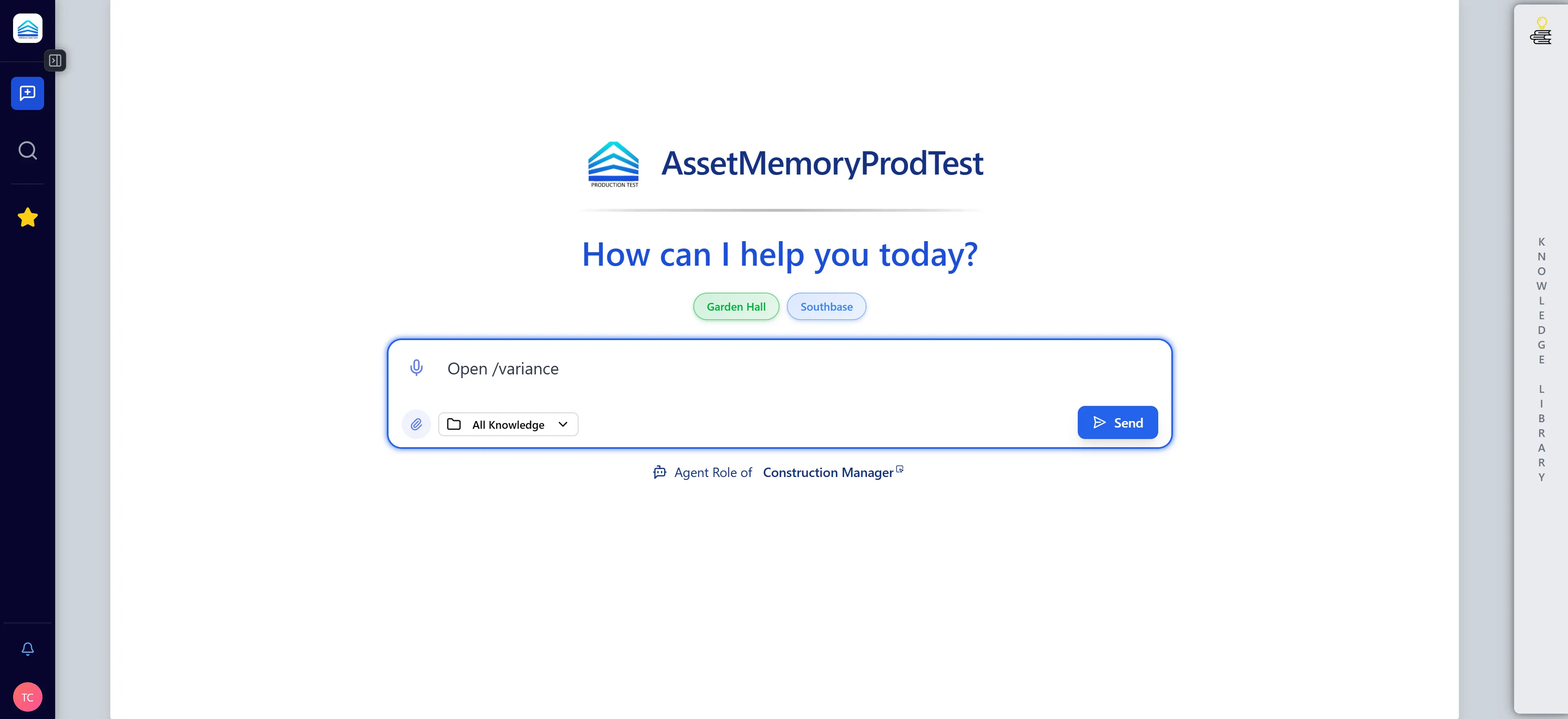
- Open the Technical Variance Identification Tool from chat, or go to
/variance. - Select New Comparison.
- Choose Files mode.
If the tool is not available, ask an administrator to enable Varisolver for your organization.
2. Add The Documents
Section titled “2. Add The Documents”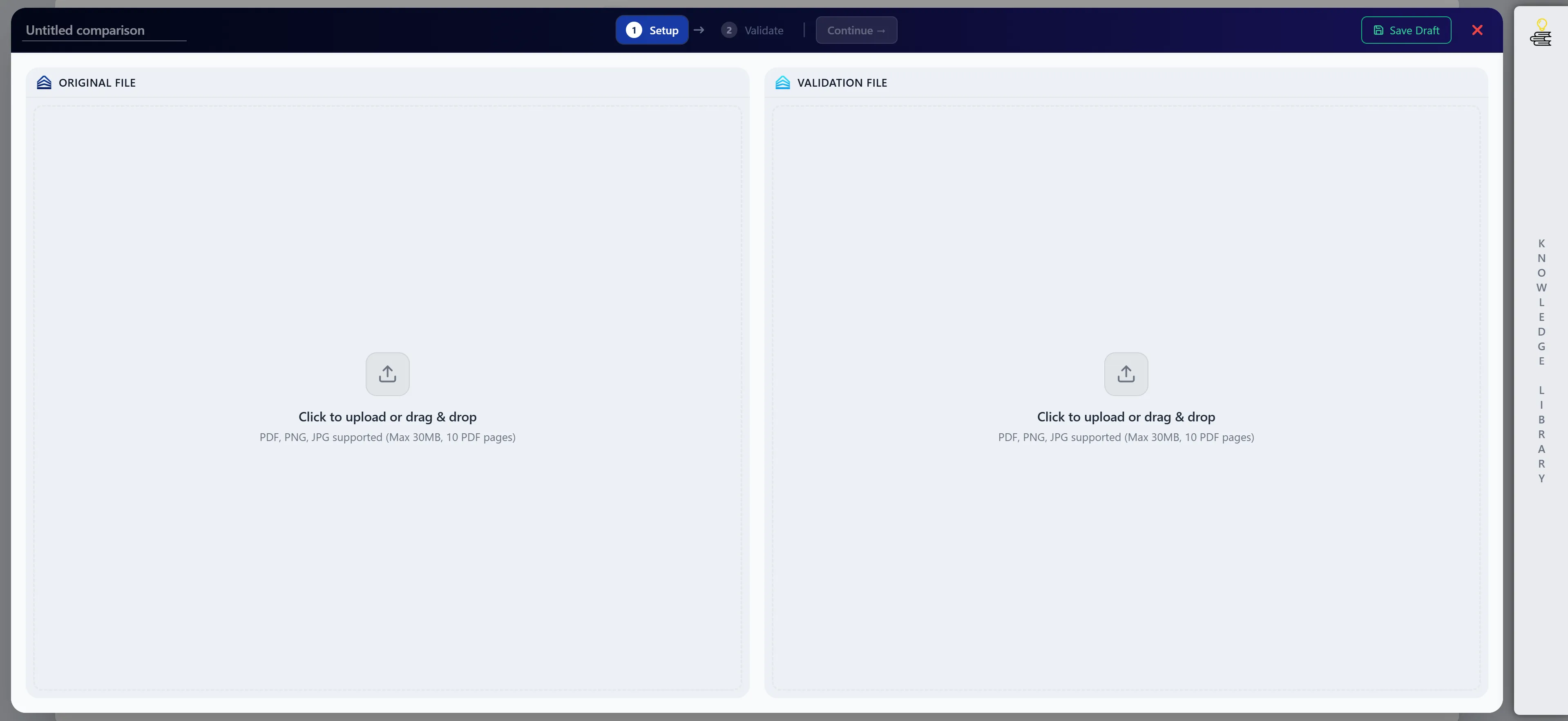
- Add the older or baseline file to Document A.
- Add the newer or revised file to Document B.
- Wait for both document previews to load.
- Check that the previews look correct before continuing.
You can add documents from your computer or from the Knowledge Library.
Supported common file types include:
- PNG
- JPG / JPEG
3. Check The Document Order
Section titled “3. Check The Document Order”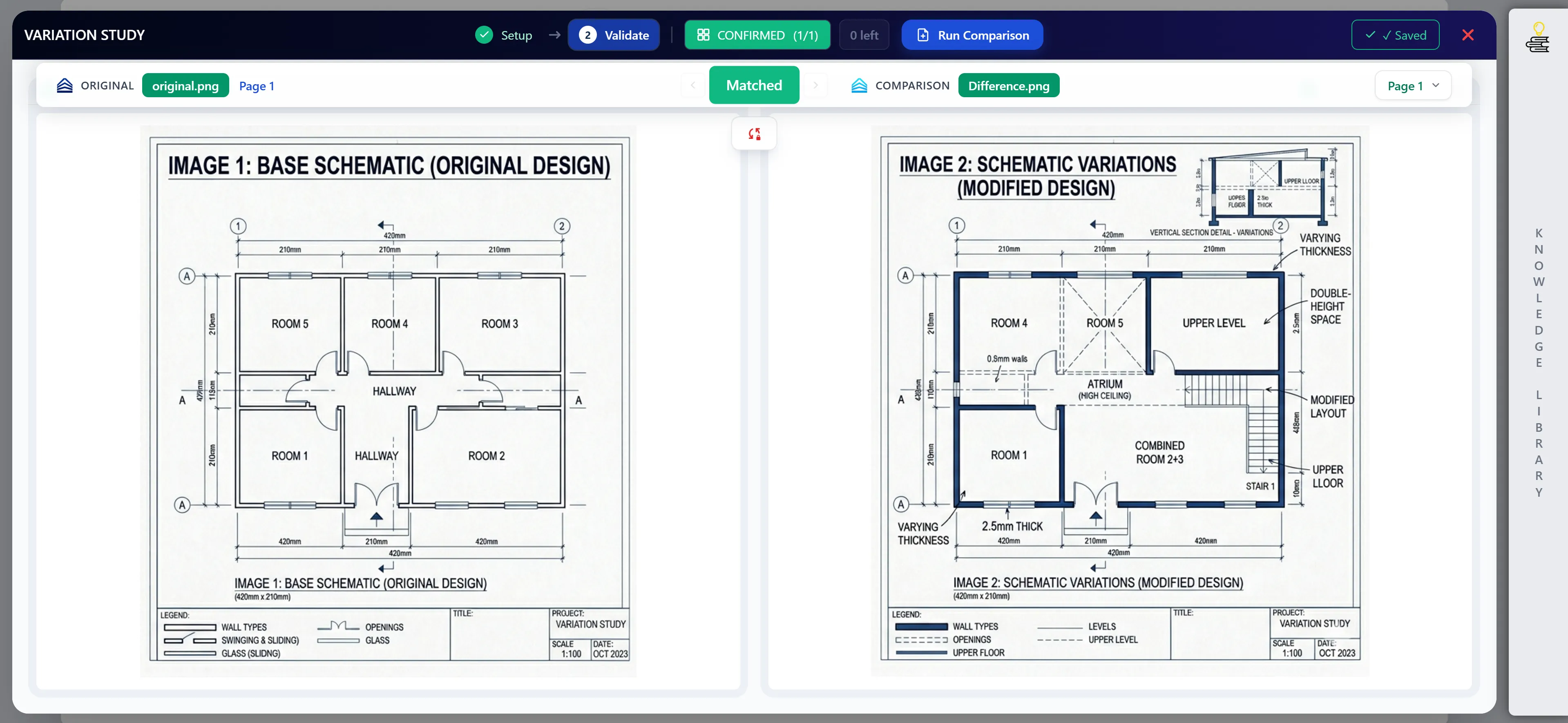
Before pressing Continue, make sure:
- Document A is the older or baseline version.
- Document B is the newer or revised version.
- Both previews loaded successfully.
- The page counts look sensible.
- The pages appear to be in the expected order.
This matters because the tool compares pages in pairs. If the wrong document is in A or B, or if the pages are out of order, the results can be confusing.
4. Press Continue
Section titled “4. Press Continue”Press Continue once both files are ready.
You may see a warning if the tool thinks the files might not line up. For example, the page counts may be different or the drawing numbers may not appear to match.
If you see a warning:
- Choose Cancel if you want to fix the documents first.
- Choose Continue Anyway if you have checked the files and are happy to proceed.
5. Review Page Pairing
Section titled “5. Review Page Pairing”Before running the comparison, review which pages will be compared.
Check that:
- The correct pages are paired together.
- Only the pages you want to compare are selected.
- Any irrelevant pages are excluded.
If the page pairing is wrong, adjust it before running the comparison.
6. Run The Comparison
Section titled “6. Run The Comparison”When the page pairing looks right, choose:
- Compare Files to compare the selected files/pages.
- Compare All if you want to run the full available comparison.
Wait for the comparison to finish. Larger documents or multiple pages may take longer.
7. Review The Results
Section titled “7. Review The Results”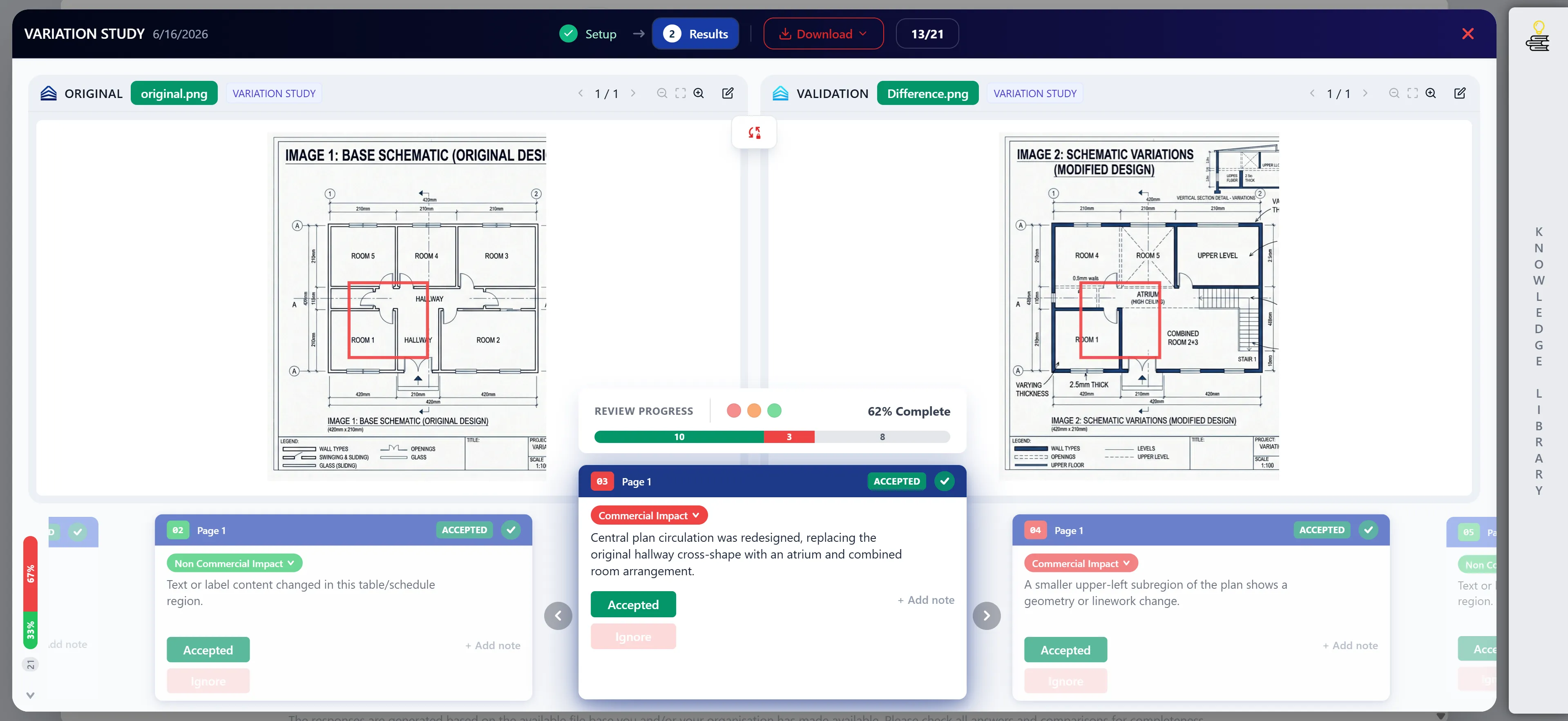
After the comparison finishes, review each detected difference.
For each item:
- Select it from the results list.
- Inspect the highlighted area in the document viewer.
- Read the generated description.
- Decide whether the change is relevant.
- Add notes if needed.
- Set a status or priority if your workflow requires it.
The tool is a review assistant. Always check important changes against the document preview before making decisions.
8. Save Or Return Later
Section titled “8. Save Or Return Later”You can return to previous work from the variance dashboard or history area.
Use this when:
- You started a comparison but did not finish it.
- You want to review a completed comparison again.
- You need to update notes, statuses, or priorities.
Practical Tips
Section titled “Practical Tips”- Use clean PDF files where possible.
- Put the older file in Document A and the newer file in Document B.
- Check page order before continuing.
- Compare fewer pages first if the document is large.
- If results look noisy, check that the pages are paired correctly.
- If expected changes are missing, confirm the changed page was selected.
- Use Knowledge Library files when the documents are already stored there.
Troubleshooting
Section titled “Troubleshooting”| Issue | What to do |
|---|---|
| Tool is not available | Ask an administrator to enable Varisolver. |
| File will not load | Check the file type and try a clean PDF or image. |
| Preview looks wrong | Remove the file and upload it again. |
| Page warning appears | Check page count, order, and whether A/B are reversed. |
| Results are noisy | Compare fewer pages or fix page pairing. |
| A change is missing | Confirm the changed page was included in the comparison. |
| Knowledge Library file will not work | Check that you have access to the document or project. |
Recommended Review Habit
Section titled “Recommended Review Habit”For the best results:
- Confirm A/B order.
- Confirm page order.
- Confirm page pairing.
- Run the comparison.
- Review each detected change manually.
- Save notes and statuses as you go.